Preview Window
Table of Contents
Introduction
The Preview Window is a mode on any output stream to use the output as preview of a Composition, Screen, (multiple) outputs and inputs. It is similar to the Designer Preview Selection and very handy to inspect the rendering in the Runtime or the Director.
Configuration
To enable a video output stream as Preview, enable Use for Preview in the Device Configuration video output settings.
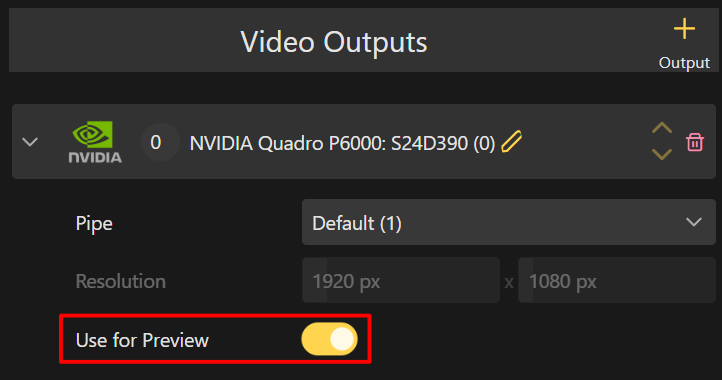
The preview output stream is not taken into account for the Render Setup and is independent from a fixed mapping now.
Runtime and Live Options
When the preview feature is used with the Ventuz Presenter, the Preview Window can be configured via the Live Options in the Configuration Editor. Navigate to the Stream Options and the Preview Options. With the Preview selector, the preview can be set to all types of outputs, Compositions, Screens, inputs and all at once.
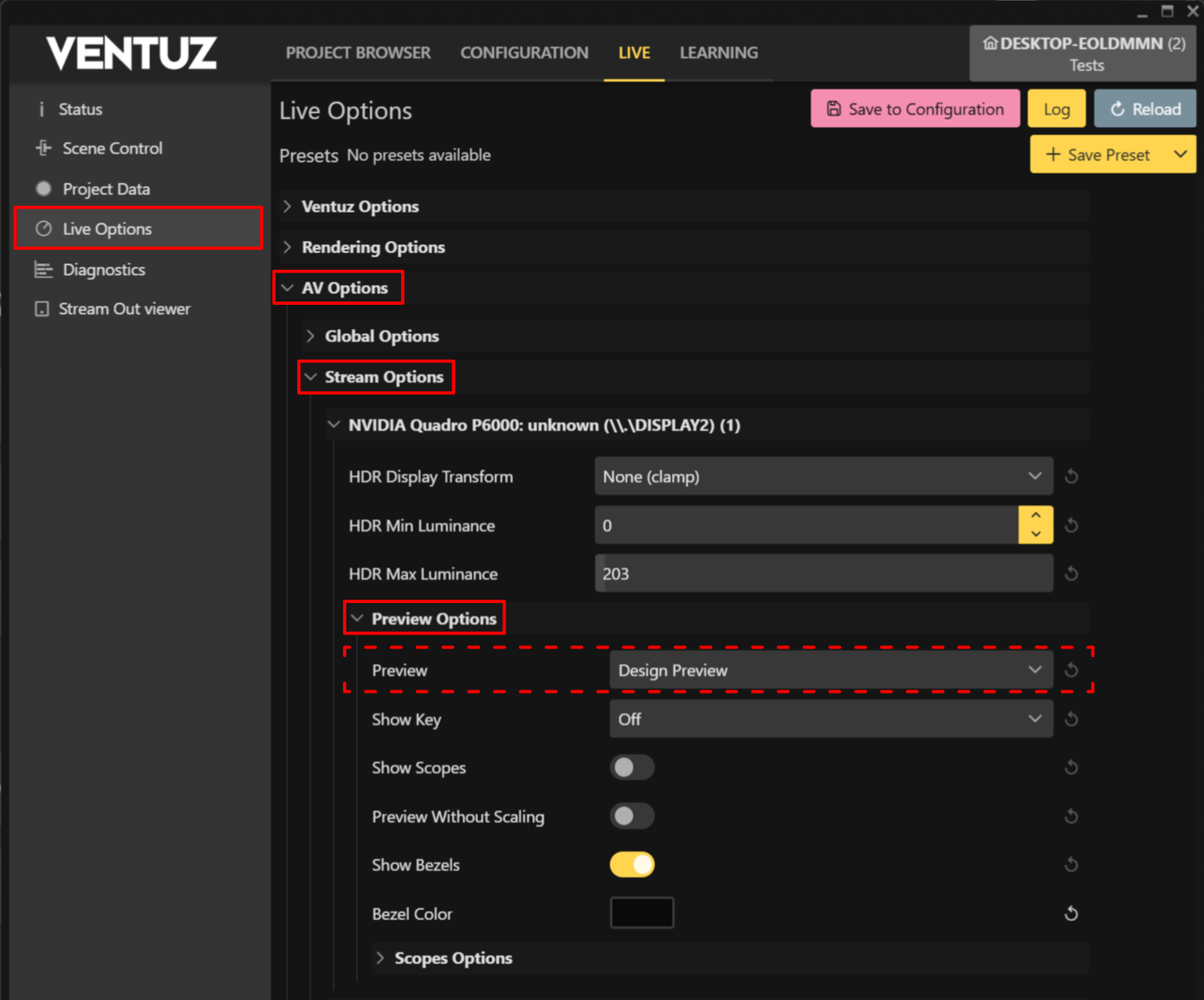
Show Key can show the alpha channel or displays a background checkerboard to debug the alpha channel of the rendering.
The Video Scopes are another toolset to inspect the rendering, as in the Designer. In general, the preview options are the same as in the Designer Preview Selection. Activate the scopes with Show Scopes and configure them with the Scopes Options underneath the Preview Options.
Preview Without Scaling always renders the preview in the Render Setup configured resolution. Show Bezels shows bezels between Screens / Composition when set up in the Render Setup. Bezel Color sets their color.
Director
The preview rendering can be viewed and controlled from the Ventuz Director.
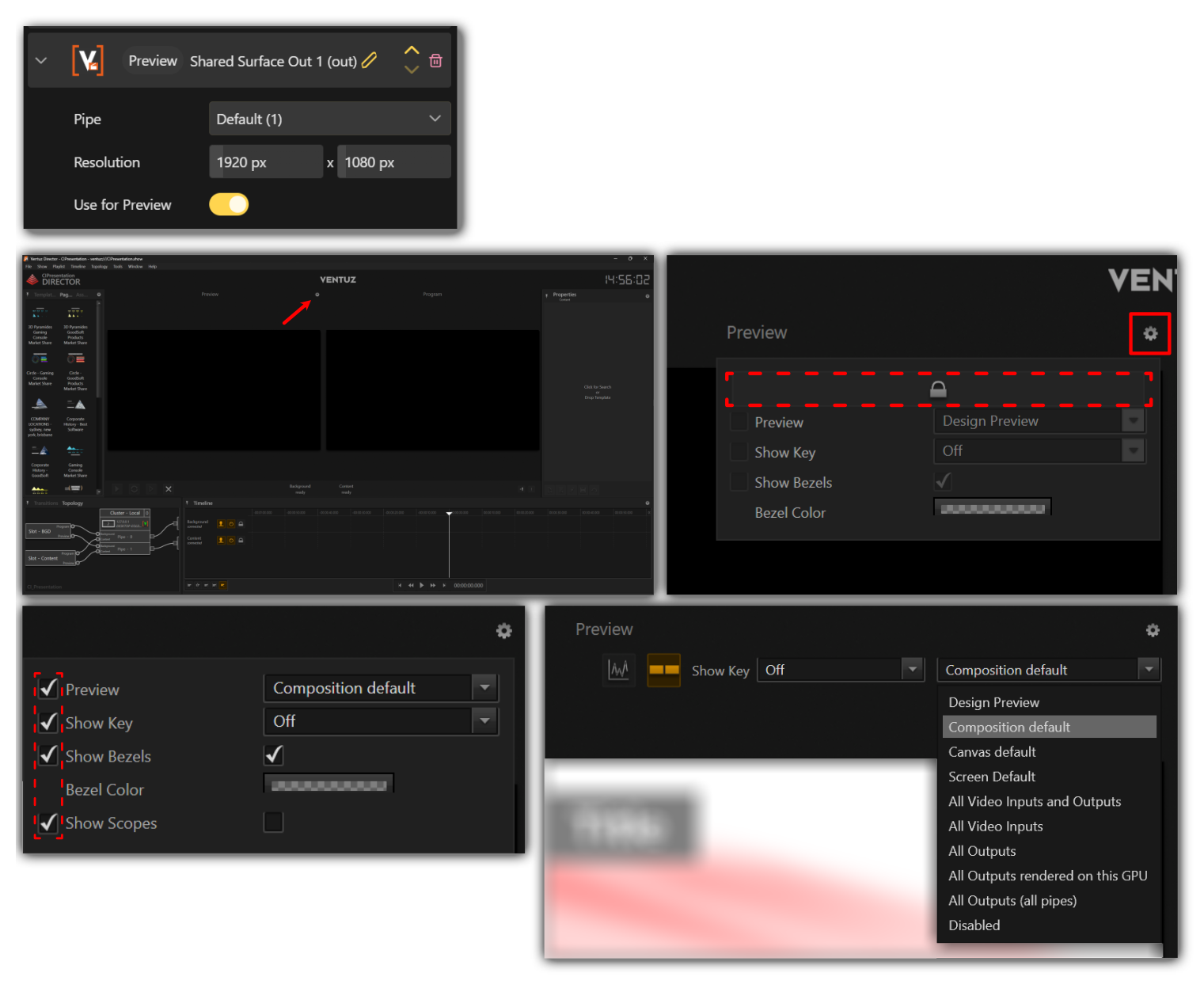
If the Shared Surface or other Device Configuration video output is set as Preview Window in the Device Configuration, the cogwheel menu on the renderer window includes the same controls for the preview as in the Live Options.
First you need to unlock the preview function. With the tick boxes, the selector, the Video Scopes and the other controls are fixed to the top of the renderer window. Use the dropdown of the Preview selector to view anything from your setup.
The Video Scopes are not available in the Design Preview.
Performance
Depending on the selected preview, the engine needs to render extra content. Especially previewing all outputs and many input devices can have a visible impact on the performance! While this is not an issue during debugging and testing, be careful while using the preview during production and check the performance draw beforehand.