Scene Transition
Table of Contents
General Concept
With Scene Transitions (or Transition Scenes), Ventuz can seamlessly blend two Scenes or Templates. The Transition Scene holds the current on-air Scene, and the cued Scene in a Scene Port. Because of this, it is possible to blend the two Scenes together to enable Ventuz to make both Scenes visible at the same time.
To use Transitions, every Template in Director has a tab with Transition, to add a built-in Transition or custom Transitions. The Transition is always added to the cued Template and will be placed between the (default) Layout Scene and the Template Scene when cued. Because the Scene Transition holds both Scenes, the engine has to validate and render both. When both Templates are in the same Scene, the Scene is loaded twice to perform the Transition.
Please Note: during a transition, Ventuz will render both Scenes at the same time; Please ensure that all systems that will be using these transitions can handle the extra load of two scenes running simultaneously
Technical Setup
The Transition Scene is a standard Ventuz Scene with a specific configuration, to work as Transition Scene:
- Every Transition consists of 2 Scene Port Layers. The first to hold the Program Pipe (or Pipe0) and the second the Preview Pipe (or Pipe1).
- The Main Animation is in Template mode and has a Begin State and a Present State that is connected to the Begin State.
- The Scene is saved with .trans at the end of the name. For example: CustomTransition.trans.vzs This naming scheme is mandatory for Ventuz to recognize the Scene as a Transition.
- The default Scene Transition (File --> New from preset --> Scene Transition) is pre configured with these settings.
In General, every animation between these two Ports is possible. For a detailed description see the: How To Build a Scene Transition.
The Animation section of a the Transition Scene behaves the same way as a standard Template does. Data channels added to the Animation Data are accessible when the Transition is cued and useful for creating custom Transitions. The default duration is determined by the duration between the Begin and Present state and is changeable when cued.
Cue and Take Process
This graphics shows the process of a cue and take with a Transition in the Scene Tree window, with an break-down below:
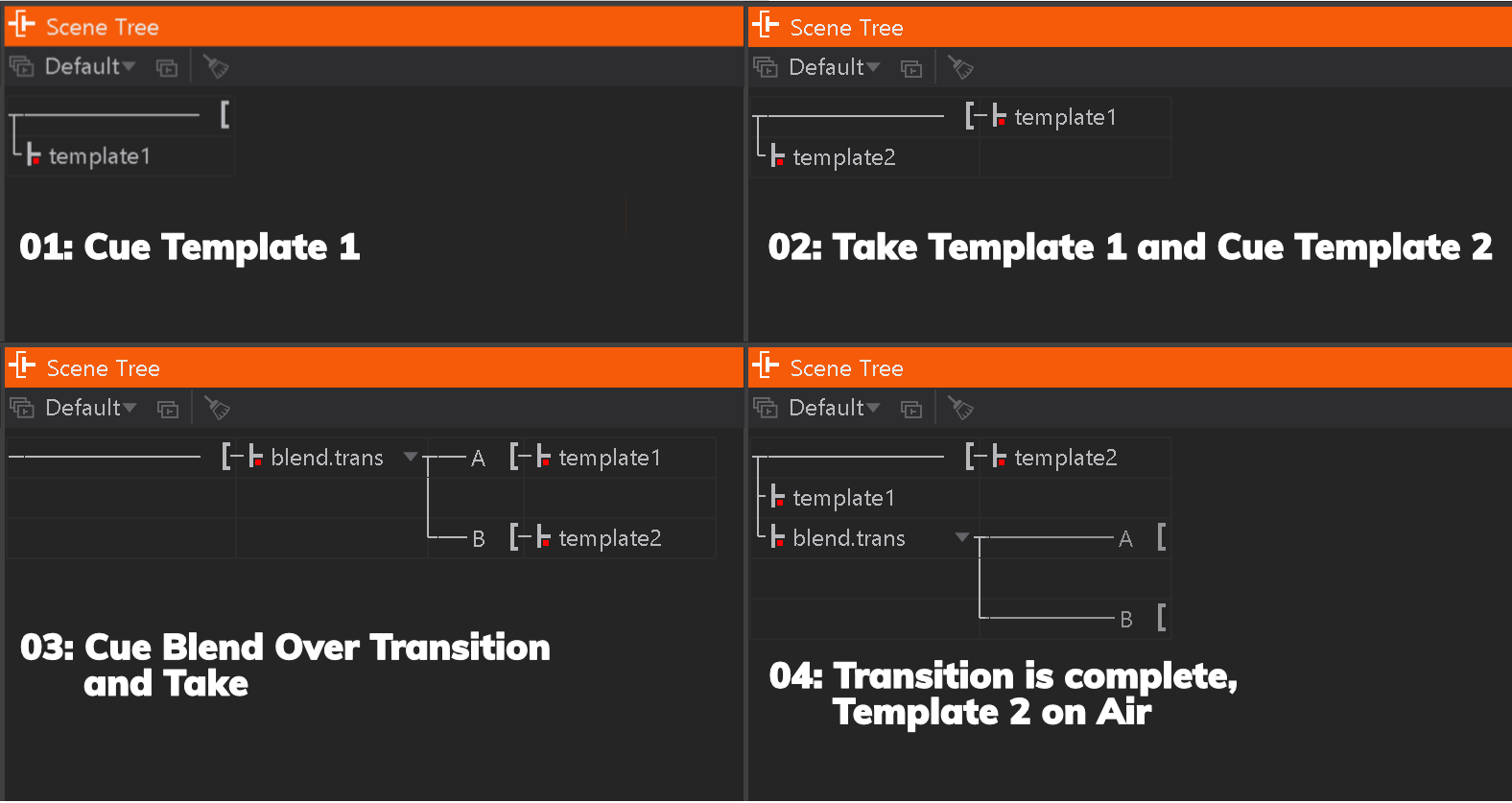
- 01: Standard Cue of Template 1.
- 02: Take Template 1 and Cue Template 2 (so far, this is the normal process).
- 03: Now the Blend Over Transition is added to the cued Template 2. The blend.trans Scene is placed in the Program Pipe and holds the on-air Template 1 and the cued Template 2. Since the Transition blends between both Templates, it must hold the on-air Template as well as the new one. Please keep in mind, that this process is happening when the Transition is cued. So two performance heavy Scenes can have impact on the rendered Program Pipe's output.
- Take!
- 04: After the Take is done and the Transition's animation done, the blend.trans Transition Scene is released and only Template 2 is on air.
Control and Information
With the Transition Info Node the status and state of the Transition Scene is available. This node is useful when building custom logic to trigger events that depend on the progress of the Transition.
The Audio Incoming and Outgoing channel within the Transition Scene can control the Audio output channel in the Template Scene, where it can control the audio level of a bound movie clip node.
Timing
The timing of Templates together with the Transition is shown below:
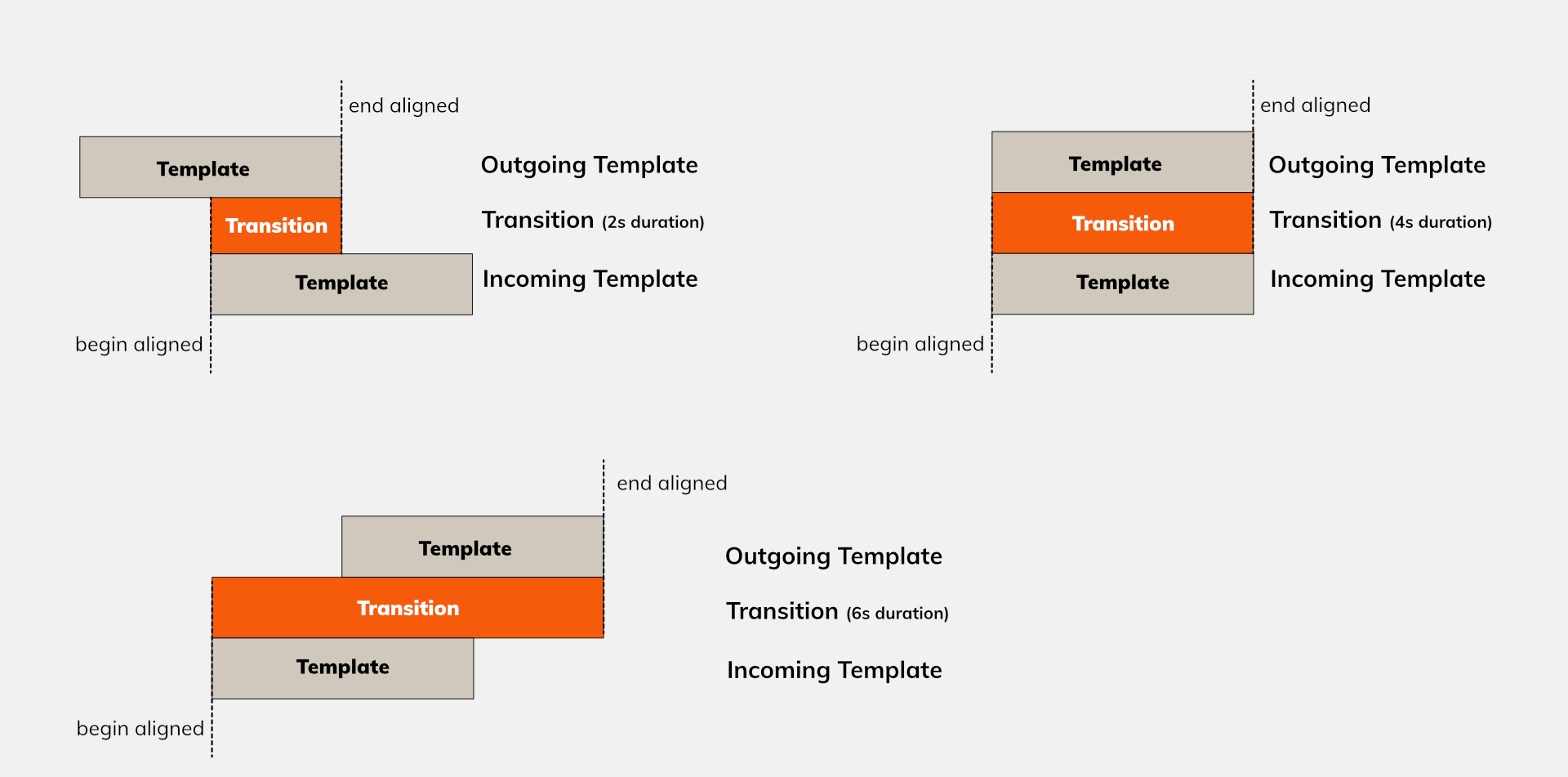
Depending on the length of the Template animation, the Transition will align relatively different.
Director
The Director has built-in Transitions in a separate Transition window. To use custom Transitions, they must be part of the Published Scenesin the same way Templates are. If there is a new .trans Scene in the directory, Director will ask to add it. To add it manually, you can find it in top menu bar: Show -> Project -> Published Scenes.
All Transitions are selectable in the Transitions window and added by dragging onto the cued Template's animation tab. The duration and all Transition Data can be changed for all Transitions and if used.
Predefined Transitions
Ventuz comes with a bunch of embedded pre-defined Scene Transitions which are always available:
| Category | Type | Namespace | Preset Name | Preset Description |
|---|---|---|---|---|
| Mix | Non-Visual | ventuz://transitions/~~~nonvis.trans/Main/NV | Empty | Just loads the new template over the previous one. Does not apply visual effects |
| Mix | ventuz://transitions/~~~mix.trans/Main/Mix | Mix | Simple mix using alpha blending | |
| Dip | ventuz://transitions/~~~dip.trans/Main/Dip | DipToColor | Fade between the Templates with a dip to color | |
| Wipe | Wipe | ventuz://transitions/~~~wipe.trans/Main/Wipe | Wipe LR | Vertical wipe, left-to-right |
| Wipe RL | Vertical wipe, right-to-left | |||
| Wipe vertical centered | Vertical wipe starting from center | |||
| Wipe TD | Horizontal wipe, top-down | |||
| Wipe BU | Horizontal wipe, bottom-up | |||
| Wipe horizontal centered | Horizontal wipe starting from center | |||
| Wipe Iris | ventuz://transitions/~~~wipe.trans/Main/WipeIris | Wipe Circle | Circular wipe starting at a custom position | |
| Wipe Rectangle | Rectangular wipe starting at a custom position | |||
| Wipe Rhombus/Diamond | Rhombus/diamond wipe starting at a custom position | |||
| Wipe Cross | Cross wipe starting at a custom position | |||
| Wipe diagonal Cross | Diagonal cross wipe starting at a custom position | |||
| Wipe Angle | Diagonal wipe with custom wipe angle | |||
| Slide Out | Slides current content out (not cluster-capable) | |||
| Slide In | Slides new content in (not cluster-capable) | |||
| Slide In/Out | Slides new content in and current content out (not cluster-capable) |
Please refer to the Layer Mixer for further information regarding the adjustable Template Data properties, or add a Transition to a Template or Page in Director to see its properties.
Technical Information
Scene transitions are similar in structure to Template Data and are contained within these. There is a separate metadata property called !Cue, which is reserved for special so-called Cue Instructions. Its only child at the moment is SceneTransition, holding the complete data object defining a Transition. The special metadata property @~Duration of a Transition defines the desired duration in seconds as double value.
This example shows a 4-second Wipe Cross transition inside the Scoreboard Template of the Hockey project (thumbnails are removed for brevity):
{
    "@": "ventuz://templates/templates%7Cfs_scoreboard/FS_ScoreBoard/FS_Scoreboard",
    "@Name": "FS_Scoreboard",
    "@DisplayName": "FS_Scoreboard",
    "@Thumbnail": null,
    "@Keywords": "score, fullscreen",
    "!Cue": {
        "SceneTransition": {
            "@": "ventuz://transitions/~~~wipeiris.trans/Main/WipeIris",
            "@Name": "WipeCross",
            "@DisplayName": "Wipe Cross",
            "@Description": "Cross wipe starting at a custom position",
            "@Category": "Wipe",
            "@Thumbnail": null,
            "@ChannelIds": "",
            "@Keywords": "",
            "@~Duration": "4",
            "Direction": {
                "Invert": false,
                "IrisShape": "Cross",
                "CenterX": 50,
                "CenterY": 50,
                "Aspect": 0,
                "AspectRelation": "Absolute"
            },
            "Edge": {
                "Dimension": "WidthPercentage",
                "Softness": 0,
                "Thickness": 0,
                "Color": "Black",
                "Alpha": 100
            }
        }
    },
    "Title": "Title",
    "Subtitle": "Subtitle",
    "Visual": null,
    "ScoreboardTicker": null
}
Limitations
- In general, it is important to check the performance of your templates when using heavy Templates before a production. Ventuz validates and renders both Scenes for blending. If the Transition scene contains complex animations, keep them in mind as well, performance-wise.
- Transitions are placed between the (default) Layout Scene and the Template Scene. Therefore bindings between these need a custom Transition scene, which includes the binding. It is also possible to use a Data Portal to send the data from the Layout Scene to all other Scenes.
- Be aware, the Transition Scene affects the Program Pipe when cued. It is possible to have a poorly designed Transition Scene, (e.g. the Program Port is not visible on Begin State) that can affect your Program Pipe's rendering when it is cued. Before a production, it is advised to deactivate them in the Published Scenes configuration.