Navigation

Ventuz 5 Quick Guide

  • Introduction
  • Getting Started
  • Ventuz Editions
  • Designer Overview
  • Ventuz System Requirements
  • Configuration
  • Video/Audio Configuration
  • Machine Configuration
  • GPI Configuration for Runtime or Director
  • Optimize Rendering Performance
  • Supported Formats
  • Supported Hardware
  • Multisampling / Anti-Aliasing
  • Input Subsystem
  • Ventuz Proprietary Files
  • What's new
  • FAQ
  • Common Mistakes
  • Deployment
  • Migration Guide
  • Summary Shortcuts

Ventuz 5 Designer

  • Index
  • Getting Started
  • Designer Options
  • Designer Overview
Projects & Scenes
  • Projects and Scenes
  • Project Browser
  • Project Properties
  • Project Maintenance
  • Project and Scene Data
  • Scene Tree
  • Scene Management
  • Scene Statistics
  • Deployment
Interface
  • Designer Interface
  • Renderer Window
  • Realtime Rendering
  • Optimize Scene Performance
  • Performance Statistics
  • Transformation Gizmo
  • Render to Disk
  • Camera Navigation
  • Isolated Objects
  • Manipulate Objects with Gizmos
  • Layer Editor
  • Common Layer Properties
  • IPP Effects
  • Color Correction FX
  • Distortion FX
  • Filter FX
  • Layer Editor Shortcuts
  • Hierarchy Editor
  • Working with Nodes
  • Containers
  • Find and Replace
  • Shortcuts Hierarchy Editor
  • Content Editor
  • Working with Nodes
  • Containers
  • Content Editor Shortcuts
  • Toolbox
  • Available Nodes
  • Property Editor
  • Project Data and Scene Data
  • Shader Editor
  • Text Editor
  • Scene Tree
  • Message View
  • Stage Editor
  • Animation Nodes
  • Animation Editor
  • Animation and State Engine
  • Templates
  • Template Engine
  • Shortcuts Animation Editor
  • Text Nodes
  • Text Rendering
  • Text Editor
  • Character Sets
  • Geometry Import
  • World Nodes
  • Geometry Nodes
  • Texture Nodes
  • Material&Color Nodes
  • Render Option Nodes
  • Interaction Nodes
  • Input Subsystem
  • Multitouch
  • TUIO Protocol
  • Open Sound Control
  • VR Nodes
  • How to work with Head Mounted Displays
  • Cluster
  • Multi Display Setups and Shaping
  • Warping, Soft Edging and Masking

Ventuz 5 Node Reference

ANIMATION
  • Mover
  • Alternator
  • Simple Control
  • Timeline Control
  • Keyframe Animation
  • Animation Group
GEOMETRY
  • Rectangle
  • Rounded Rectangle
  • Gradient Rectangle
  • Overlay Rectangle
  • Cube
  • Circle
  • Sphere
  • Cylinder
  • Cone
  • Torus
  • Chart
  • Random Points
  • Mesh Loader
  • Geometry Import (Live)
  • Volume
DATA
  • Database
  • Excel
  • JSON
  • RSS Feed
  • Resource Linker
  • Text File
  • XML
INTERACTION
  • Touch Button
  • Touch Excluder
  • Touch Marker
  • Touch Paint
  • Touch Pattern
  • Touch Proxy
  • Touch Ripples
  • Touch Transformations
  • Web Browser
  • Touch Teleport
  • Touch Simulator
INPUT/OUTPUT (I/O)
  • GPI
  • Joystick
  • Keyboard
  • MIDI
  • Mouse
  • Network
  • Open Sound Control
  • Serial
  • Timecode
LOGIC
  • Array Processing
  • Convert To Text
  • Cluster Synchronization
  • Counter
  • Date Time
  • Directory
  • Dispatcher
  • Enumeration
  • Expressions
  • Invert
  • Log
  • Loop Breaker
  • Math Effects
  • Matrix Operations
  • Scene Event
  • Script
  • String Operations
  • System ID
  • Text Splitter
  • Timer
  • Toggle
  • URL
  • Value Switch
  • Value Buffer
  • Variables
  • Visual Indexer
COLOR/MATERIAL
  • Alpha
  • Fog
  • Ground Fog
  • Sky Box
  • Color to RGBA
  • HSLA to Color
  • RGBA to Color
  • Color Transformer
  • HLSL Shader
  • Color
  • Material
LAYER
  • 3D Layers
  • 3D Layer Reference
  • 2D Layers
  • PSD Import Layer
  • Others
RENDER OPTIONS
  • Alpha Blending
  • Alpha Testing
  • Clip Plane
  • Filter
  • Mask
  • Mirror
  • Effect
  • Point Options
  • Render Cube Map
  • Render Options
  • Stencil
  • ZTesting
LIGHT
  • Light Sources
TEXT
  • Text Effects
  • Text Layouts
  • Text Rendering
VR/AR
  • Tracked Devices
  • Draw Tracked Devices
WORLD
  • Axis
  • Billboard
  • GetWorld
  • SetWorld
  • Arrange
  • Ticker
  • Layout
  • Group
  • World Z Sort
  • YesNo
  • Switch
  • Spread
  • Filter Pass
  • Set Pass
  • Hierarchy Container
  • Scene Port
  • Content Container
  • Template Port
  • Container Info
  • Camera
TEXTURE
  • Background
  • Hatch
  • Image
  • Texture
  • SVG Loader
  • Live Video
  • Movie Stream
  • Movie Frame
  • Movie Clip
  • Texture Loader
  • Snapshot
  • Gradient Texture
  • Texture Saver
  • Video Source Selector
  • VIO Input
SOUND
  • Audio Clip
  • Sound
  • Volume Control
  • FFT Audio Analysis
SLIDES
  • Slide Manager
  • Slide
  • Slide Port
  • Pivot

Ventuz 5 Director

  • Application Settings
  • Assets
  • Channels
  • Command Line Options
  • Content References
  • Designing Templates
  • Environment
  • Glossary
  • Index
  • Introduction
  • Pages
  • Playlist
  • Plug-Ins
  • Project Data
  • Property Editor
  • Shortcuts
  • GPI Configuration
  • Shot Box
  • Show
  • Taking Action
  • Timeline
  • Topology
  • User Interface
  • Director Mode

How To

  • How to Run Ventuz
  • How to Work with Designer
  • Ventuz Designer Drag&Drop workflow
  • How to use Head Mounted Displays
  • How to work with Shadows
  • How to use Emoijs
  • How to Build a Template
  • How to use Newtek NDI
  • How to Create Visuals Loader Node
  • How to Remote Control with a Phone
  • How to Setup a Cluster Render
  • How to use a Mixed Frame Rate Cluster
  • How to use Tracking
  • How to work with 3D Reference Layers

Keyboard Shortcuts

  • Summary Shortcuts
  • Layer Editor Shortcuts
  • Hierarchy Editor Shortcuts
  • Content Editor Shortcuts
  • Animation Editor Shortcuts
  • Director Shortcuts

Advanced and Development

  • Command Line Options
  • Remoting Overview
  • Remoting 4
  • Deprecated Remoting
  • Ventuz IP Ports
  • Ventuz Machine Service
  • Remoting Machine Signature
  • TUIO
  • .NET Scripting
  • HLSL Shader Programming
  • Ventuz API and SDK
  • Ventuz VIO API

General Reference

  • Terminology
  • Manual Index

Miscellaneous

  • Presets
  • PropertyGroups
« Previous Article
» Index «
Next Article »

Designer Options

Table of Contents

  1. Help
  2. Scene
    1. Load & Save Options
  3. View
    1. Color Theme
    2. Workspace
  4. Editors
    1. Content Editor
    2. Text Editor

The Ventuz Designer allows some user-dependent configurations that are described above. Look for the eye symbol inside the certain editors to find the options menu.

Help

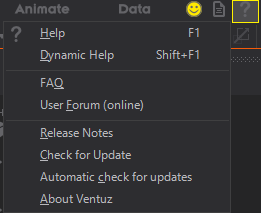
Under Help you can enable/disable the Dynamic Help, check the latest Release Notes or enable/disable the Automatic update check for Ventuz via internet.
Scene

Load & Save Options

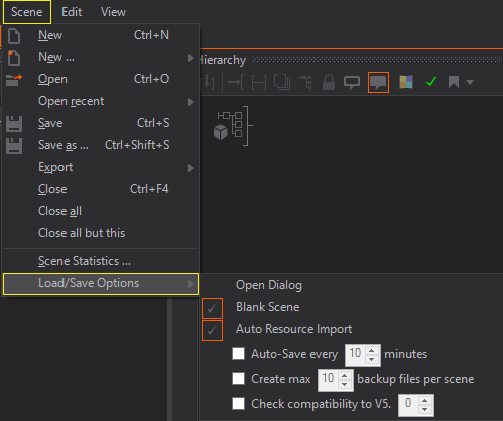
  • Open Dialog
    Enables/Disables the automatic display of the Open Scene dialog after opening a Project.
  • Blank Scene
    Opens a new empty Ventuz Scene every time a Ventuz Project is opened.
  • Auto Resource Import
    Enables/Disables the automatic import of external resources to the Project folders without a user dialogue.
  • AutoSave every XX minutes
    Enables/Disables Auto-Save mechanism to periodically save all open scenes in auto-save files. For more details see Scene Backup and Versioning.
  • Create max. XX backup files per scene
    Enables/Disables the generation of backup files for old scene versions on a Save Scene operation. For more details see Scene Backup and Versioning.
  • Check compatibility to V5.{{XX}}
    Enables/Disables the check whether a saved scene is no longer compatible to an older version of Ventuz 5. If the Presenter/Runtime still runs on an older version, this option helps to keep scenes compatible. For more details see Deployment.
View

Color Theme
  • Color Theme
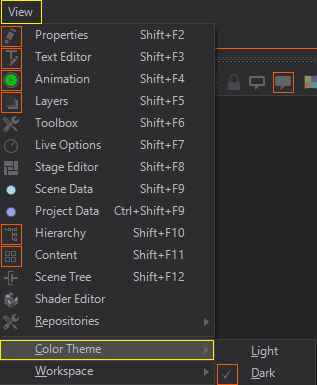
    Switches between the default grey user interface theme and a darker version. This can be done during runtime but will take a couple of seconds at the first time.

Workspace

Ventuz allows you to set your own preferred workspace. Workspaces can be easily saved and loaded. Moreover, you can import and export your preferred workspace in case you need to.
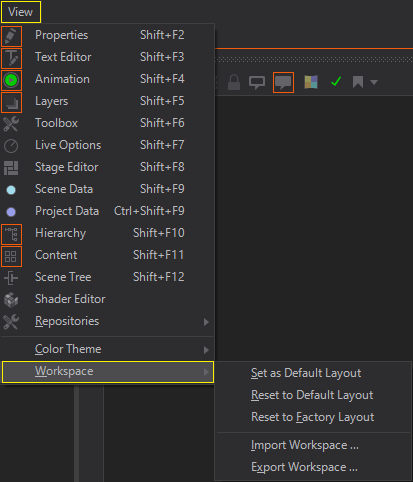
  • Set as Default Layout
    Sets the current Layout as default.
  • Reset to Default Layout
    Resets the active Layout to the last saved default.
  • Reset to Factory Layout
    Resets the Workspace to the Designer Factory Default.
  • Import Workspace
    Allows the import of a Ventuz Designer Workspace file .vws.
  • Export Workspace
    Allows to export a Designer Workspace to a .vws file.

Editors

Content Editor
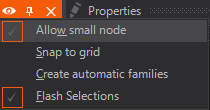
  • Allow small icons
    The Content Editor can display nodes in a small style to save edit space. Small Content nodes without names are also displayed without braces to make them even smaller. Users who prefer the nodes to be all the same size can disable this feature here.
  • Snap to Grid
    Enables/Disables the alignment of Content nodes to a virtual grid. This makes it easier to create properly lined-up content logic.
  • Automatic Content Family creation
    Enables/Disables the automatic creation of Content Editor Families for some Toolbox Wizards (e.g. the Texture Wizard).

Text Editor
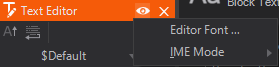
  • Font
    Specifies the font to use in the Text Editor window. This font is not related to any fonts used in the render output!
  • IME Mode
    Specifies the IME mode (Input Method Editor) for text editors inside Ventuz Designer. Special languages like, Chinese require special IME settings depending on the used keyboards.

See also:
  • User Interface

« Previous Article
» Index «
Next Article »
Copyright 2004-2017 Ventuz Technology Group