Navigation

Ventuz 5 Quick Guide

  • Introduction
  • Getting Started
  • Ventuz Editions
  • Designer Overview
  • Ventuz System Requirements
  • Configuration
  • Video/Audio Configuration
  • Machine Configuration
  • GPI Configuration for Runtime or Director
  • Optimize Rendering Performance
  • Supported Formats
  • Supported Hardware
  • Multisampling / Anti-Aliasing
  • Input Subsystem
  • Ventuz Proprietary Files
  • What's new
  • FAQ
  • Common Mistakes
  • Deployment
  • Migration Guide
  • Summary Shortcuts

Ventuz 5 Designer

  • Index
  • Getting Started
  • Designer Options
  • Designer Overview
Projects & Scenes
  • Projects and Scenes
  • Project Browser
  • Project Properties
  • Project Maintenance
  • Project and Scene Data
  • Scene Tree
  • Scene Management
  • Scene Statistics
  • Deployment
Interface
  • Designer Interface
  • Renderer Window
  • Realtime Rendering
  • Optimize Scene Performance
  • Performance Statistics
  • Transformation Gizmo
  • Render to Disk
  • Camera Navigation
  • Isolated Objects
  • Manipulate Objects with Gizmos
  • Layer Editor
  • Common Layer Properties
  • IPP Effects
  • Color Correction FX
  • Distortion FX
  • Filter FX
  • Layer Editor Shortcuts
  • Hierarchy Editor
  • Working with Nodes
  • Containers
  • Find and Replace
  • Shortcuts Hierarchy Editor
  • Content Editor
  • Working with Nodes
  • Containers
  • Content Editor Shortcuts
  • Toolbox
  • Available Nodes
  • Property Editor
  • Project Data and Scene Data
  • Shader Editor
  • Text Editor
  • Scene Tree
  • Message View
  • Stage Editor
  • Animation Nodes
  • Animation Editor
  • Animation and State Engine
  • Templates
  • Template Engine
  • Shortcuts Animation Editor
  • Text Nodes
  • Text Rendering
  • Text Editor
  • Character Sets
  • Geometry Import
  • World Nodes
  • Geometry Nodes
  • Texture Nodes
  • Material&Color Nodes
  • Render Option Nodes
  • Interaction Nodes
  • Input Subsystem
  • Multitouch
  • TUIO Protocol
  • Open Sound Control
  • VR Nodes
  • How to work with Head Mounted Displays
  • Cluster
  • Multi Display Setups and Shaping
  • Warping, Soft Edging and Masking

Ventuz 5 Node Reference

ANIMATION
  • Mover
  • Alternator
  • Simple Control
  • Timeline Control
  • Keyframe Animation
  • Animation Group
GEOMETRY
  • Rectangle
  • Rounded Rectangle
  • Gradient Rectangle
  • Overlay Rectangle
  • Cube
  • Circle
  • Sphere
  • Cylinder
  • Cone
  • Torus
  • Chart
  • Random Points
  • Mesh Loader
  • Geometry Import (Live)
  • Volume
DATA
  • Database
  • Excel
  • JSON
  • RSS Feed
  • Resource Linker
  • Text File
  • XML
INTERACTION
  • Touch Button
  • Touch Excluder
  • Touch Marker
  • Touch Paint
  • Touch Pattern
  • Touch Proxy
  • Touch Ripples
  • Touch Transformations
  • Web Browser
  • Touch Teleport
  • Touch Simulator
INPUT/OUTPUT (I/O)
  • GPI
  • Joystick
  • Keyboard
  • MIDI
  • Mouse
  • Network
  • Open Sound Control
  • Serial
  • Timecode
LOGIC
  • Array Processing
  • Convert To Text
  • Cluster Synchronization
  • Counter
  • Date Time
  • Directory
  • Dispatcher
  • Enumeration
  • Expressions
  • Invert
  • Log
  • Loop Breaker
  • Math Effects
  • Matrix Operations
  • Scene Event
  • Script
  • String Operations
  • System ID
  • Text Splitter
  • Timer
  • Toggle
  • URL
  • Value Switch
  • Value Buffer
  • Variables
  • Visual Indexer
COLOR/MATERIAL
  • Alpha
  • Fog
  • Ground Fog
  • Sky Box
  • Color to RGBA
  • HSLA to Color
  • RGBA to Color
  • Color Transformer
  • HLSL Shader
  • Color
  • Material
LAYER
  • 3D Layers
  • 3D Layer Reference
  • 2D Layers
  • PSD Import Layer
  • Others
RENDER OPTIONS
  • Alpha Blending
  • Alpha Testing
  • Clip Plane
  • Filter
  • Mask
  • Mirror
  • Effect
  • Point Options
  • Render Cube Map
  • Render Options
  • Stencil
  • ZTesting
LIGHT
  • Light Sources
TEXT
  • Text Effects
  • Text Layouts
  • Text Rendering
VR/AR
  • Tracked Devices
  • Draw Tracked Devices
WORLD
  • Axis
  • Billboard
  • GetWorld
  • SetWorld
  • Arrange
  • Ticker
  • Layout
  • Group
  • World Z Sort
  • YesNo
  • Switch
  • Spread
  • Filter Pass
  • Set Pass
  • Hierarchy Container
  • Scene Port
  • Content Container
  • Template Port
  • Container Info
  • Camera
TEXTURE
  • Background
  • Hatch
  • Image
  • Texture
  • SVG Loader
  • Live Video
  • Movie Stream
  • Movie Frame
  • Movie Clip
  • Texture Loader
  • Snapshot
  • Gradient Texture
  • Texture Saver
  • Video Source Selector
  • VIO Input
SOUND
  • Audio Clip
  • Sound
  • Volume Control
  • FFT Audio Analysis
SLIDES
  • Slide Manager
  • Slide
  • Slide Port
  • Pivot

Ventuz 5 Director

  • Application Settings
  • Assets
  • Channels
  • Command Line Options
  • Content References
  • Designing Templates
  • Environment
  • Glossary
  • Index
  • Introduction
  • Pages
  • Playlist
  • Plug-Ins
  • Project Data
  • Property Editor
  • Shortcuts
  • GPI Configuration
  • Shot Box
  • Show
  • Taking Action
  • Timeline
  • Topology
  • User Interface
  • Director Mode

How To

  • How to Run Ventuz
  • How to Work with Designer
  • Ventuz Designer Drag&Drop workflow
  • How to use Head Mounted Displays
  • How to work with Shadows
  • How to use Emoijs
  • How to Build a Template
  • How to use Newtek NDI
  • How to Create Visuals Loader Node
  • How to Remote Control with a Phone
  • How to Setup a Cluster Render
  • How to use a Mixed Frame Rate Cluster
  • How to use Tracking
  • How to work with 3D Reference Layers

Keyboard Shortcuts

  • Summary Shortcuts
  • Layer Editor Shortcuts
  • Hierarchy Editor Shortcuts
  • Content Editor Shortcuts
  • Animation Editor Shortcuts
  • Director Shortcuts

Advanced and Development

  • Command Line Options
  • Remoting Overview
  • Remoting 4
  • Deprecated Remoting
  • Ventuz IP Ports
  • Ventuz Machine Service
  • Remoting Machine Signature
  • TUIO
  • .NET Scripting
  • HLSL Shader Programming
  • Ventuz API and SDK
  • Ventuz VIO API

General Reference

  • Terminology
  • Manual Index

Miscellaneous

  • Presets
  • PropertyGroups
« Previous Article
» Index «
Next Article »

Creating Pages

Table of Contents

  1. Creating Pages and Sub-Pages
  2. Using Pages
  3. Modifying Pages

A page is the combination of a template and some associated data. If a template is a blueprint or form to fill out, the page is a filled out version of it that is ready to go. Pages are stored in the Pages folder inside the Ventuz Project and can be used by any show that uses the project. Typical examples are player bios, sponsors or other elements of a show that are known in advance and re-occur multiple times within a show. What is actually saved is only the specific data with a link to the template to be used. This way, a page requires extremely little memory usage, so many different pages, that are linked to a few templates, can be saved and used without bogging down memory or storage.

All available Pages are shown inside the Pages Browser which is part of the Default Window Layout. By default, it is docked behind the Templates Browser and can be brought to the front by  clicking on the faded out "Pages" label next to the bright "Templates" label. If it is not part of the current window layout, it can be added by using the Window Management.
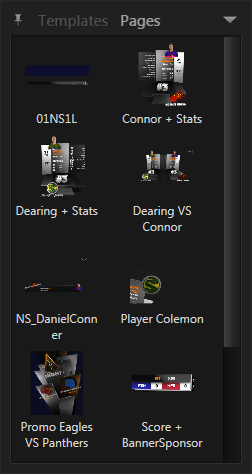
Creating Pages and Sub-Pages

To create a new page, press the Create new Page button in the Footer of the Property Editor:

A dialog appears where a name, description and other properties of the page can be edited. Name and description can be created automatically from the entered templates data items. Which data items are used is defined in Ventuz Designer during the creating of the template. A checkbox allows to switch between automatic creation and manual input.
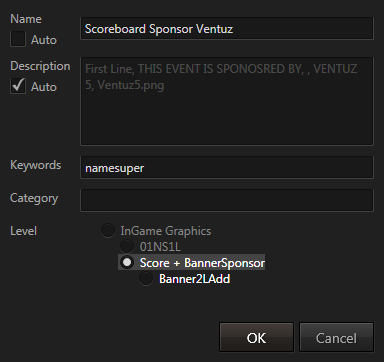
Perhaps most important - besides the name - is the section labeled Level. As already mentioned in the chapter on the Property Editor, Ventuz Director supports sub-templates - optional add-ons/extensions to templates. Similarly, Pages do not have to contain all the content shown in the Property Editor but can be used to store a sub-part of it. For example, the Hockey demo content contains a sub-template for showing a sponsor logo. By changing the template-level to just the sponsor part, different pre-filled versions of the sponsor template can be created to represent individual sponsors. This allows the operator to cue the main template, modify values and then use a pre-manufactured sub-page for the sponsor!

Using Pages

There are three ways to use a page:

  1. All pages that do not require a parent template (sub-pages) are shown in the pages dialog.  double-click a page to cue it.
  2. The same set of pages is also listed in the application-wide Shot Box that can be opened by pressing + on the numeric pad of the keyboard.
  3. When  clicking into an empty template-slot inside the Property Editor, a filtered shot box for all suitable templates and pages for that slot appears.

Older template-based applications that exist on the market often use a four or five digit page number to identify and recall pages quickly. By assigning such a number as page name, the same functionality can be re-created using the shot box. However, with proper use of Auto-Templates, having an explicit page can often be avoided completely!

Modifying Pages

When cueing a page and modifying values, those modifications happen locally only the template instance and do not modify the page. For saving changes back to the page or editing its properties, see the chapter on Content Reference.

« Previous Article
» Index «
Next Article »
Copyright 2004-2017 Ventuz Technology Group